Documentation / Client guides
Codex models setup
Kismet can run OpenAI’s Codex coding models through your ChatGPT subscription instead of a metered API key. A small local app — Codex Proxy — bridges the two, and Kismet’s Codex model group routes to it automatically. No environment variables to set.
Estimated time: 5 minutes
How it works
Codex Proxy is a small app that runs on your machine and exposes your ChatGPT subscription as a standard OpenAI-compatible API on http://localhost:8080.
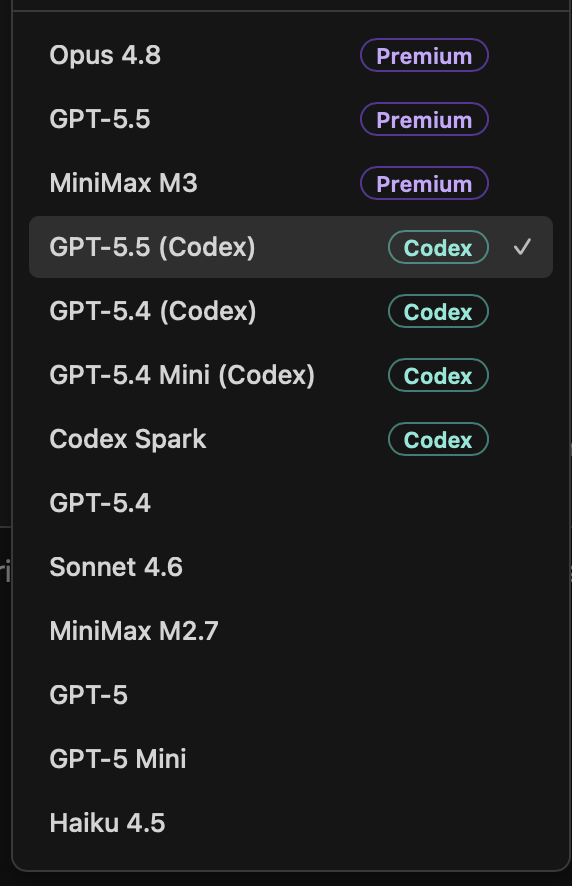
Kismet’s model picker has a dedicated Codex group. Selecting any model from that group sends the request to the local proxy — and therefore to your ChatGPT subscription — so there is no metered OpenAI key and no per-token cost. The other GPT entries (GPT-5.5, GPT-5.4, …) continue to use the real OpenAI API as before.
Routing is decided per model, not globally: a Codex model always goes to the proxy and a plain GPT model always goes to the metered API, so you can switch between them in the same session. Kismet points the Codex route at http://localhost:8080 with the default proxy key automatically — there are no environment variables to set.
Requirements
Before starting, make sure you have the following.
| Kismet | Plugin installed in your Unreal project and working (see the Installation guide). |
|---|---|
| Operating system | Windows 10/11 or macOS. |
| ChatGPT account | Any ChatGPT account works; Plus or higher is recommended for better quota. |
GPT-5.x entries — see Codex vs. the metered API.Step 1 — Install Codex Proxy
Codex Proxy is a desktop app. Install it on the same machine that runs Unreal Editor.
- 1.
Download the installer
Get the latest release from the Codex Proxy releases page. On Windows download
Codex Proxy Setup x.x.x.exe; on macOS downloadCodex Proxy-x.x.x.dmg. - 2.
Install and open the app
Run the installer (Windows) or drag the app to Applications (macOS), then launch Codex Proxy. It starts a local server on port 8080.
- 3.
Sign in with your ChatGPT account
In the app, start the login flow. A browser window opens for the ChatGPT sign-in; complete it and return to the app.
- 4.
Confirm the dashboard
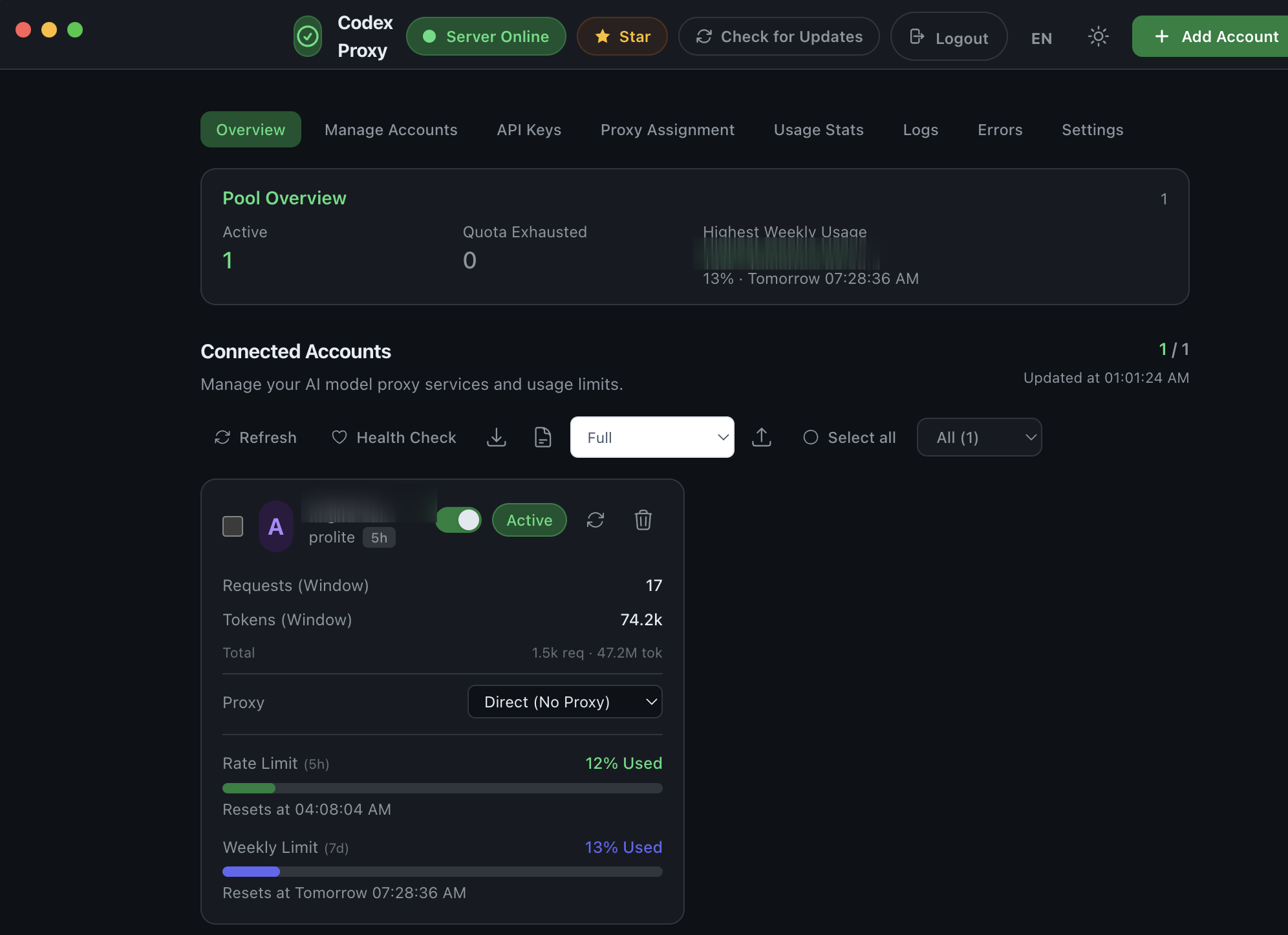
Open
http://localhost:8080in a browser. You should see your signed-in account. On a fresh install the proxy API key ispwd— which is the value Kismet uses by default, so you usually don’t need to touch it.
Step 2 — Verify the proxy
Confirm the proxy answers before touching Unreal. You should see streaming text in the response.
macOS (Terminal):
curl http://localhost:8080/v1/chat/completions \
  -H "Content-Type: application/json" \
  -H "Authorization: Bearer pwd" \
  -d '{"model":"gpt-5.5","messages":[{"role":"user","content":"Hello!"}],"stream":true}'
Windows (PowerShell):
curl.exe http://localhost:8080/v1/chat/completions `
  -H "Content-Type: application/json" `
  -H "Authorization: Bearer pwd" `
-d '{\"model\":\"gpt-5.5\",\"messages\":[{\"role\":\"user\",\"content\":\"Hello!\"}],\"stream\":true}'Authorization header doesn’t match the proxy’s key. Check the dashboard’s API Configuration section and use the key shown there. If it isn’t pwd, see Advanced configuration to tell Kismet about it.Step 3 — Pick a Codex model in Kismet
There are no environment variables and no editor restart dance — just pick a model.
- 1.
Make sure Codex Proxy is running
The dashboard at
http://localhost:8080should load and show your signed-in account. - 2.
Open the Kismet panel and the model picker
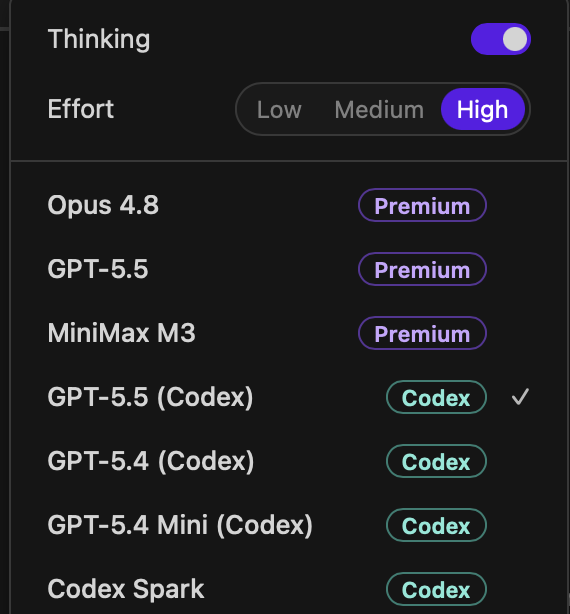
You’ll see a Codex group with a teal badge, listing the available Codex models.
- 3.
Select a Codex model
Pick GPT-5.5 (Codex) for the strongest coder. Reasoning effort is set to High automatically on selection.
- 4.
Run a small test edit
Ask for something small and verifiable — for example, add a Print String after Begin Play — and let Kismet compile the Blueprint. If the edit completes, the chain (Kismet → proxy → your subscription) is working.
The Codex model lineup
The Codex group mirrors the models your ChatGPT plan exposes through Codex. All of them run on your subscription via the proxy.
| GPT-5.5 (Codex) | Frontier model for complex coding, research, and real-world work. Default effort: High. |
|---|---|
| GPT-5.4 (Codex) | Strong model for everyday coding. |
| GPT-5.4 Mini (Codex) | Small, fast, cost-efficient model for simpler tasks. |
| Codex Spark | Ultra-fast coding model (gpt-5.3-codex-spark). |
Codex vs. the metered API
Kismet lists two ways to reach OpenAI models, and the picker keeps them visually distinct:
| Codex group | Routes to the local Codex Proxy → your ChatGPT subscription. Flat monthly cost, bounded by your plan’s usage limits. No OpenAI API key. Carries a teal Codex badge. |
|---|---|
| GPT-5.x entries | Route to the metered OpenAI API (api.openai.com). Pay-per-token, billed to your OpenAI account. Needs an OpenAI API key (added via the panel’s settings / /login). |
The two are independent — picking a Codex model never touches your OpenAI key, and picking a metered model never touches the proxy. You can move between them freely.
Advanced configuration
The defaults (http://localhost:8080 and key pwd) match a fresh Codex Proxy install, so most setups need nothing here. Override them only if your proxy differs.
| KISMETAI_CODEX_PROXY_URL | Where Kismet reaches the proxy. Default http://localhost:8080. Set this if the proxy runs on a different port or host (for example, in Docker on another machine). |
|---|---|
| KISMETAI_CODEX_PROXY_KEY | The proxy’s API key. Default pwd. Set this if your dashboard’s API Configuration shows a different key. |
These are read from the Unreal Editor’s environment at startup. On Windows, set them with setx (then restart the launcher); on macOS, launch the editor from a Terminal that exported them, or use launchctl setenv.
GPT-5.x entries, add an OpenAI API key in the Kismet panel (settings / /login). It’s used only for those metered entries; the Codex group ignores it. OPENAI_API_KEY and OPENAI_BASE_URL still work for the metered route, but are no longer needed for Codex.Troubleshooting
- The Codex group does not appear in the model picker
- Update Kismet to the latest version (see the Updating Kismet guide) and restart Unreal Editor. The Codex group ships in current builds.
- Connection refused or the request never starts
- Codex Proxy is not running, or it’s on a different address. Launch the app and confirm the dashboard loads at
http://localhost:8080. If it runs elsewhere, setKISMETAI_CODEX_PROXY_URL(see Advanced configuration). - The agent fails with a 401 error
- The proxy’s key isn’t the default
pwd. Copy the key from the dashboard’s API Configuration, setKISMETAI_CODEX_PROXY_KEYto that value, and restart the editor. - Requests fail with account or quota errors
- Your ChatGPT login may have expired or the account hit its usage limit. Open the dashboard, check the account status, and sign in again if needed. Quota recovers on ChatGPT’s normal schedule.
- A specific Codex model errors but others work
- Your ChatGPT plan may not currently serve that exact model. Pick another entry in the Codex group — the dashboard’s model list shows what your account can reach.